
The Concept step — Book Seed
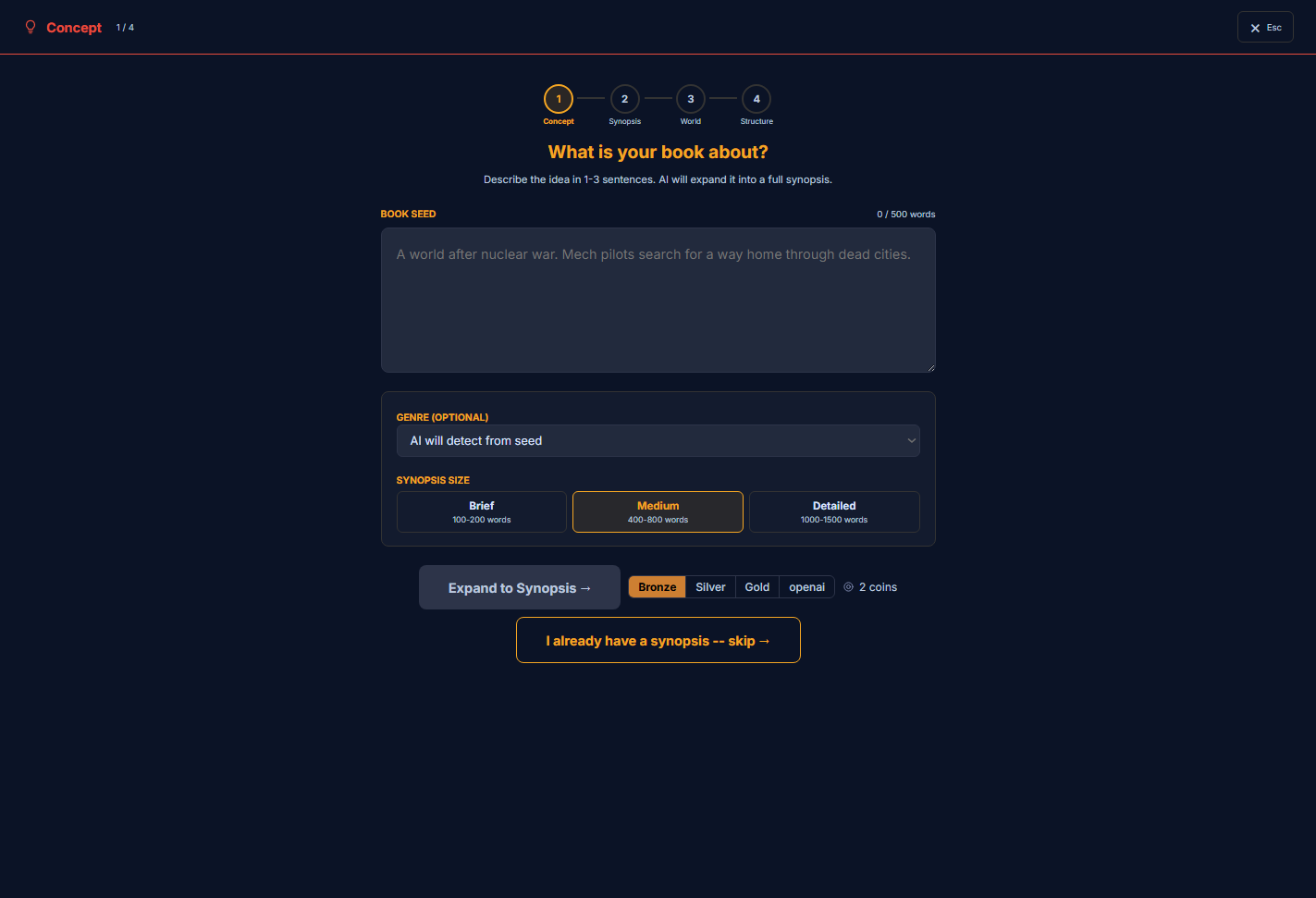
The Concept step is where a book begins. It opens as step 1 of a four-step setup wizard (Concept → Synopsis → World → Structure) and asks one question: what is your book about? You write a short seed — the smallest kernel of the plot — and the step expands it into a full synopsis you carry into the rest of setup.
What’s on this page
- The four-step wizard header — Concept is step 1 (the StoryGraph editor is separate, so it isn’t one of these four).
- A “Book Seed” field — your idea in 1–3 sentences.
- Optional controls: a Genre select and a Synopsis-size choice (Brief / Medium / Detailed).
- An “Expand to Synopsis” button with a quality-tier selector and a coin cost — or “I already have a synopsis — skip”.
How to use it
- 1Write the seed — a couple of vivid sentences about the world, who it follows, and what’s at stake.
- 2Optionally pin a genre and pick how detailed a synopsis you want.
- 3Press “Expand to Synopsis” to generate it — or skip, to paste a synopsis you already have.
Where this fits
Concept is step 1 of the setup wizard, and the shallowest of the three ways to set your plot. The seed is a tiny kernel; this step grows it into a synopsis (step 2). If you’d rather control the plot yourself, you can skip both and build it in StoryGraph — the seed and synopsis exist to give the rest of setup something to work from when you’d prefer to start from an idea rather than a full plot.
Book seed
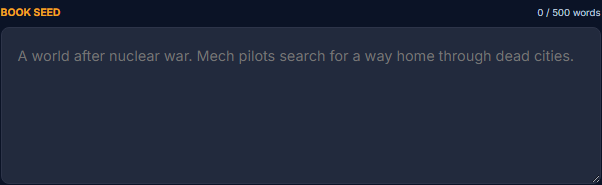
seed · textareaA world after nuclear war. Mech pilots search for a way home through dead cities.Genre & synopsis size
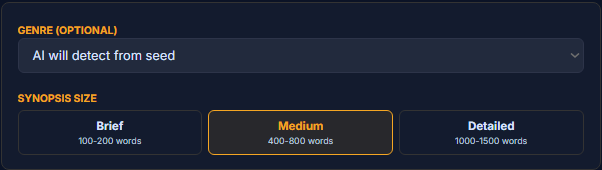
genre · selectDetect from seedthe default — inferred automatically from your seedA specific genrepins it (sci-fi, fantasy, thriller, detective, romance, horror, historical, literary, dystopia, cyberpunk, steampunk, post-apocalyptic)
synopsisSize · selectBrief100–200 words — a tight outlineMedium400–800 words — the default balanceDetailed1000–1500 words — a rich, fuller synopsis
Expand to Synopsis

Expand to Synopsis turns your seed into a full synopsis and moves you to the next step. The pill row beside it picks the quality tier — Bronze · Silver · Gold, higher tiers being more capable — and the number of coins it costs is shown right there before you commit.
Prefer to write it yourself? “I already have a synopsis — skip” spends nothing and takes you straight to the Synopsis step, where you can paste or type your own.
Using your own AI key (BYOK)
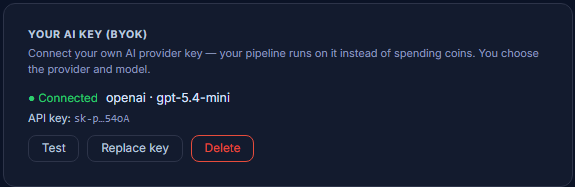
Alongside spending coins, you can bring your own AI key (BYOK): the step then runs on your own provider key instead of your coin balance — the tier selector shows it as an extra option and the cost reads “0 coins — my key”. You connect and manage the key on your Profile; once it’s connected it becomes available on every step like this one.