
The Book Setup page
Open a project and this is its home while you’re still setting it up. Book Setup lays out the handful of steps that take a book from an empty shell to something ready to write — the concept, the world, the plot and the structure — and tracks how far along you are. Once the project is far enough along, this hub steps aside and the project opens straight into the writing workspace.
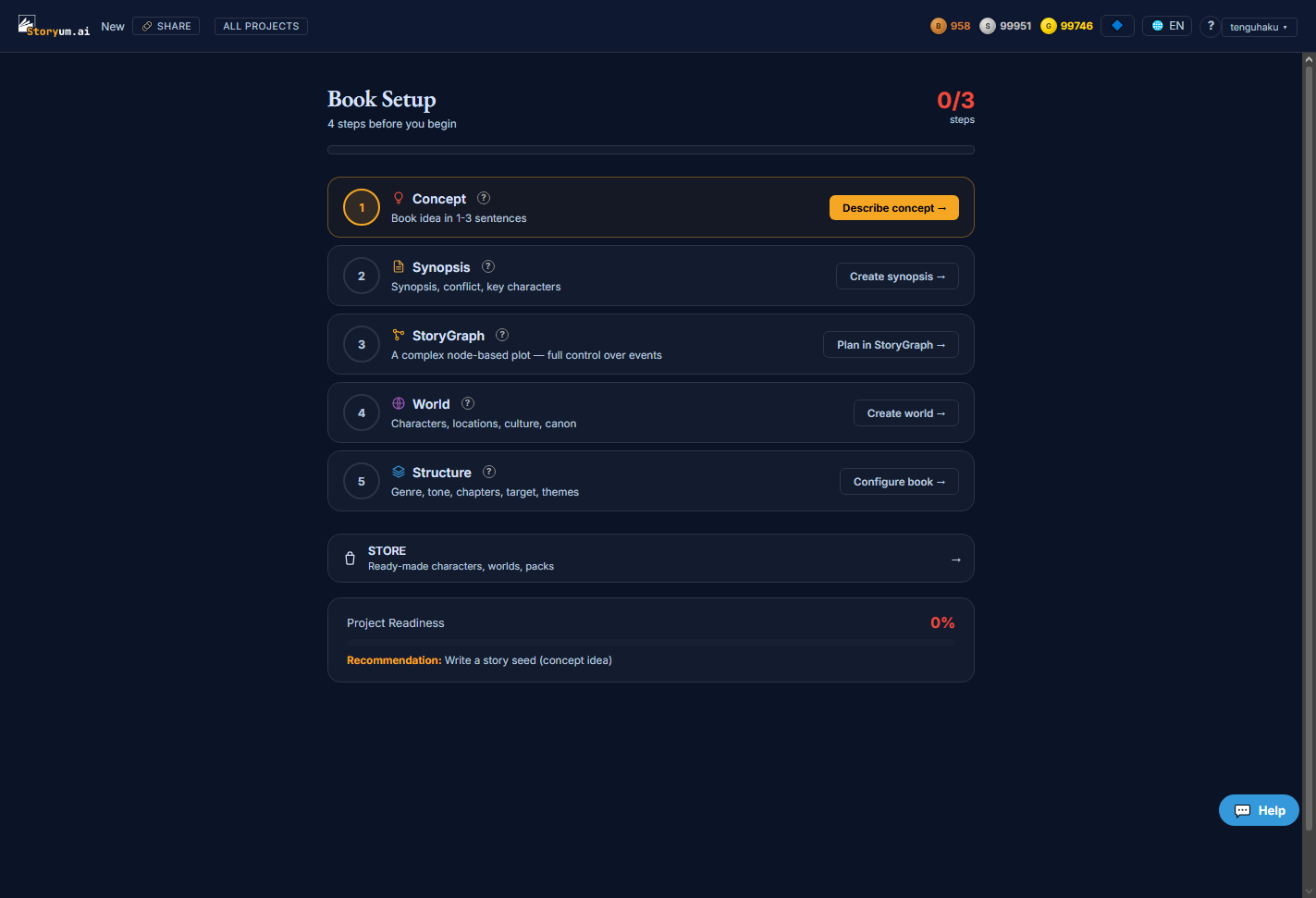
What’s on this page
- Five numbered setup steps — Concept, Synopsis, StoryGraph, World, Structure — each a card with a short description and a button.
- A “Store” shortcut to ready-made characters, worlds and packs you can drop into the project.
- A “Project Readiness” bar with a single recommended next step.
- Two progress read-outs: the step counter up top, and the Readiness percentage lower down.
How to use it
- 1Start at Concept — describe the book in a sentence or two.
- 2Work down the steps: build the world, plan the plot in StoryGraph, set the structure.
- 3Watch the Readiness bar and follow the one recommended next step.
- 4When the project is set up, Book Setup hands off to the writing workspace on its own.
The setup steps
The heart of the page is a short, numbered checklist. Four of the cards are quick setup panels — Concept, Synopsis, World and Structure — that you fill in without leaving the page. The fifth, StoryGraph, opens the full plot editor. The card that glows amber is the next thing to do.
Concept
Book idea in 1–3 sentences
The smallest starting point — a tiny kernel of the plot in a sentence or two. If a short idea is all you have, start here: the seed develops into a fuller synopsis. It’s the very first thing a brand-new project recommends.
The “Describe concept” button opens a quick in-page panel.
Synopsis
Synopsis, conflict, key characters
A fuller, more detailed plot than the seed — the story, its characters and the key actions spelled out. When you can write one, prefer the synopsis over a bare seed: it gives the rest of the setup far more to work with. (A seed you wrote earlier grows into one.) It isn’t a required step, because a short seed alone — or a plot built by hand in StoryGraph — is also a valid way to start.
The “Create synopsis” button opens a quick in-page panel.
StoryGraph
A complex node-based plot — full control over events
The plot as a graph of connected nodes — events, reveals, turns and who-knows-what — with full, hands-on control over the order and timing. This is the deepest of the three ways to set your plot: if you build it here, you don’t need the seed or synopsis at all. Unlike the other cards, it opens its own dedicated workspace rather than a quick panel. (It appears when the StoryGraph is enabled for you.)
The “Plan in StoryGraph” button opens the full plot editor.
World
Characters, locations, culture, canon
The people, places and rules of the book — characters, locations, culture and canon. This is the entity layer the writing draws on; the more of it you build, the more grounded and consistent the prose stays.
The “Create world” button opens a quick in-page panel.
Structure
Genre, tone, chapters, target, themes
The book’s shape and voice — genre, tone, chapter count, target length and themes. These settings steer how the whole book reads and how long it runs.
The “Configure book” button opens a quick in-page panel.
Store

A shortcut into the Store — ready-made characters, worlds and packs you can bring into the project instead of building everything from scratch. (Shown when the Store is available to you.)
Project Readiness

A single percentage estimating how ready the whole project is to write. It rises as you fill in the concept, build the world, set the structure and — weighing most of all — actually render scenes. The Recommendation line always points at the least-complete area, so following it is the fastest way to move the number.
The top bar in a project
Inside a project the top bar shows the project’s name, a Share button (owner-only — invite collaborators to the project), an All projects link back to the dashboard, and your bronze · silver · gold star balances. A collaborator working in a shared project won’t see Share.